Getting Started with ScreenerSight
Follow these simple steps to start comparing stocks on Screener.in in under a minute.
Install the Extension
Go to the Chrome Web Store and click the "Add to Chrome" button to install ScreenerSight. The extension will be added to your browser automatically.

Tip: Make sure you're using Google Chrome or a Chromium-based browser (Edge, Brave, etc.)
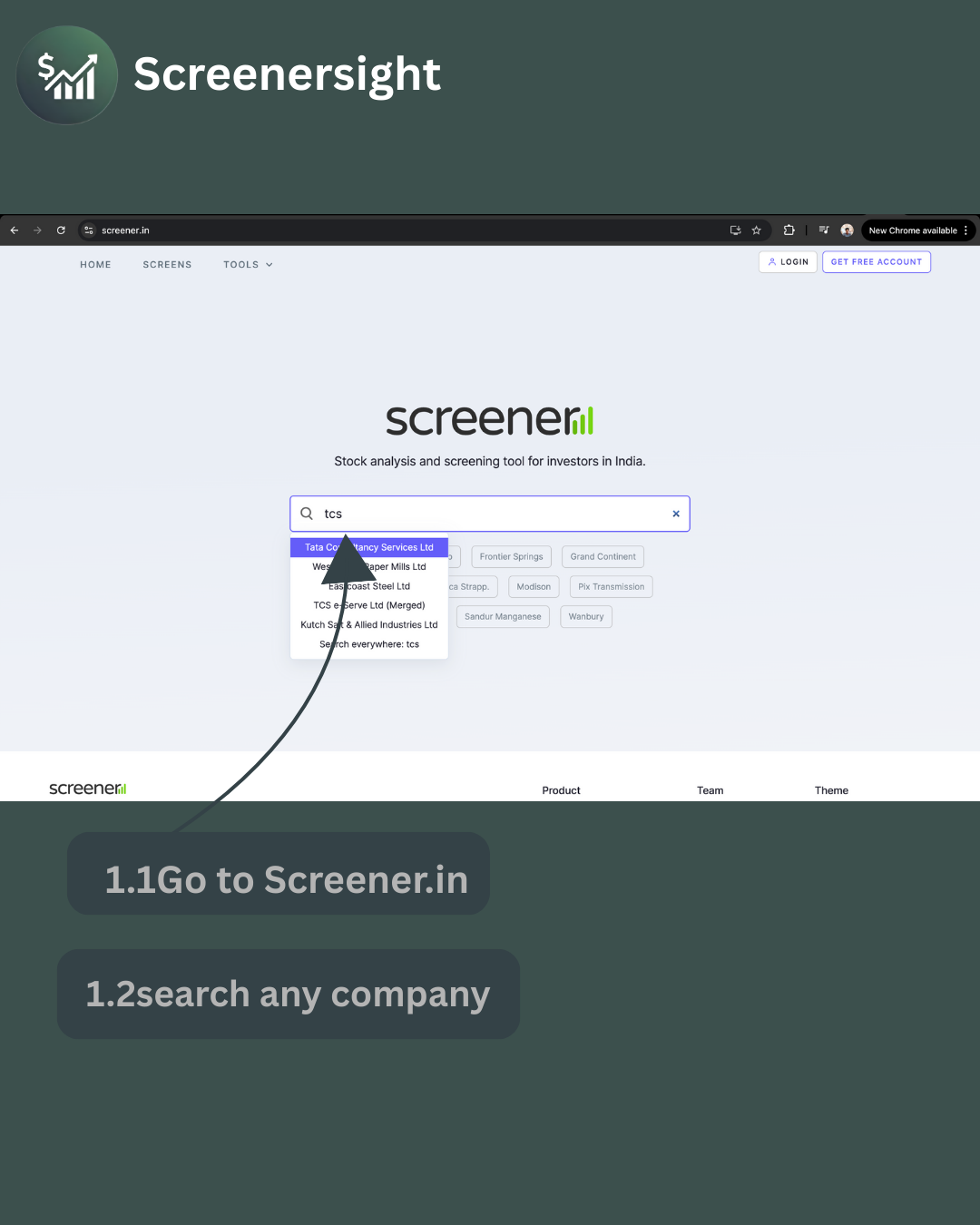
Visit Screener.in
Go to screener.in and navigate to any company page you want to compare. For example, search for "Reliance" or "TCS" and open the company details page.
Add Companies to Compare
Look at the bottom-right corner of the page. You'll see an "Add to Compare" button. Click it to add the current company to your comparison panel. Repeat for other companies you want to compare!
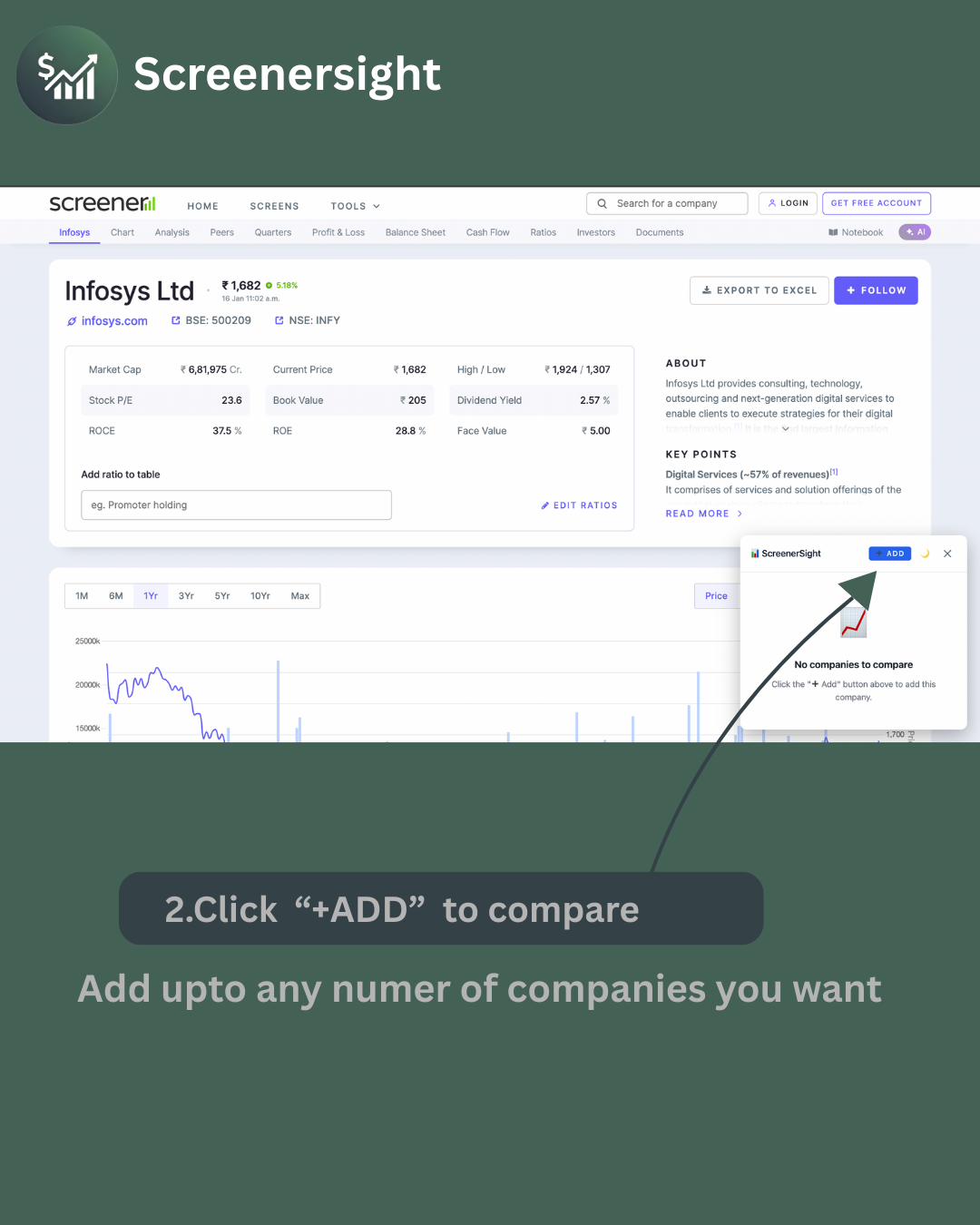
Tip: You can add as many companies as you want! The comparison panel will show all of them side-by-side with color-coded metrics.
Watch the Tutorial
Want a visual walkthrough? Watch our YouTube tutorial to see ScreenerSight in action and learn all the tips and tricks for comparing stocks effectively.
Tip: Subscribe to stay updated when we release new features and tutorials!